{{item.name}}
Price: {{currency}}{{item.price| numberThousandsCommas | numberDecimalPoint}}
Qty: {{item.amount}}


Projectors

Monitors
Lighting
Interactive Displays & Signage
Remote Work & Learning
Shop
Are you tired of constantly plugging and unplugging cables when switching between your MacBook®, another laptop, and a PC? In today's digital world, having an efficient and productive setup is crucial for designers, photographers, programmers, and gamers. One solution to this problem is a KVM (Keyboard, Video, and Mouse) switch monitor. BenQ offers a range of KVM monitors that are designed to streamline your workflow and boost productivity.
A KVM switch is a hardware device that lets users control multiple computers with one or more sets of peripherals, keyboards, monitors, and mice. This technology offers different methods of connecting to computers and reduces the need for multiple keyboards and mice on a desk.
A KVM switch on a monitor directly integrates the KVM switch into the monitor itself for convenience. This means you can connect several computers to a single monitor and switch between them using the monitor's built-in KVM features. BenQ’s KVM monitors also have features such as USB-C connectivity, making system swapping even smoother.
KVM monitors bring several advantages to the table in comparison to regular monitors. A few examples of these benefits are:
KVM monitors are a great investment overall and offer specific benefits for different fields of focus.
For Designers and Photographers
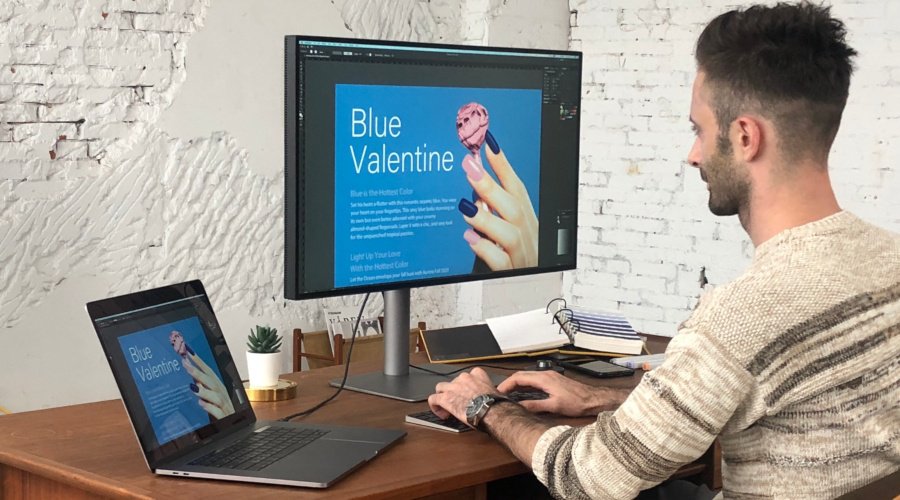
Working across multiple devices for creating, editing, and previewing creative works can be tiring. Switching from a MacBook to a desktop PC and then to another device for final previews often disrupts the workflow and wastes time. KVM monitors streamline these transitions, enabling you to move seamlessly between devices with a single control setup, helping you maintain focus on your creative tasks without interruption.
Learn more about KVM monitors for designers, photographers, and Mac users.
For Programmers
Testing code on different operating systems can be a hassle, involving starting Virtual Machines (VMs) or physically switching cables between a MacBook and Windows PC. These interruptions break concentration and waste time. KVM monitors eliminate these disruptions, allowing you to switch quickly and seamlessly between systems to reduce hassle, enhancing multitasking and coding efficiency. Ultimately, it can help you enter a state of flow and boost your productivity.
For Gamers
Switching between a gaming console and a PC can be tedious, involving unplugging and reconnecting cables, which disrupts gaming. Moving from a PC to a console might require adjusting the monitor and peripherals. KVM monitors simplify this process, enabling easy transitions between devices with one control setup, reducing desk clutter, and maintaining a smooth gaming experience.
To make the most of the KVM switch, let’s look at how to set it up and use it.
Before you start, prepare:
Let’s get started:
Traditional KVM switches often require physical buttons or external controllers to swap between systems, which can interrupt your creative flow. BenQ has introduced Smart KVM and Smart KVM Basic technologies to make this process smoother than ever.
Software-Defined Control: Configure switching logic directly via Display Pilot 2, eliminating the need for physical buttons. Simply gliding your mouse across the screen edge swaps control between systems as intuitively as using a single computer.
Working across Windows and Mac often leads to a major headache: incompatible clipboard formats that prevent you from directly copying assets, like PowerPoint elements, or files from one system to another. Smart KVM breaks this barrier:
Feature
Traditional KVM
Smart KVM Basic
Smart KVM
Switching Method
Monitor buttons
Cursor switching
(Display Pilot 2)
Cursor switching
(Display Pilot 2)
PBP Mode
Not required
Required
Required
Cross-System Copy/Paste
No
No
Yes
(text/files)
*Please refer to the User Manual of each model for detailed specifications.
Follow these steps to unify your dual-system workspace:
1. Install Software: Download and run Display Pilot 2 on both computers.
2. Enable Function: Open Smart KVM in the software menu. The system will prompt you to switch to PBP (Picture-by-Picture) mode.
3. Align Position: Set the relative location of your two computers (Left/Right) within the software.
4. Ready to Go: Once the status shows "Connected," you can immediately start switching control and transferring files via your mouse.
Whether you want to declutter your desk or solve the technical challenges of cross-platform file transfers, BenQ’s KVM monitor range provides the precision you need. From hardware-based control to seamless cross-platform collaboration, upgrade your dual-system experience today and let your workflow be limitless.
Mac® and MacBook® are trademarks of Apple Inc.
Recommended Products
{{item.productWordingTag}}
{{currency}}{{item.finalPrice| numberThousandsCommas | numberDecimalPoint}} Save {{currency}}{{item.saveAmount | numberThousandsCommas | numberDecimalPoint}} Save {{item.savePercent | numberThousandsCommas | numberDecimalPoint}}%
new device price{{currency}}{{item.regularPrice| numberThousandsCommas | numberDecimalPoint}}


![How to Choose the Best Monitor for Mac® Devices [2024]](https://image.benq.com/is/image/benqco/mac-monitor_thumb?$ResponsivePreset$)